In this article
Title
You've just finished a Webflow build. Animations are running, the CMS is live, the responsive layout looks clean across every breakpoint. Then the feedback arrives: a wall of text in an email, a Loom where the client waves vaguely at the screen, and a screenshot with "fix this" written over an area you can't quite make out.
This is the standard Webflow feedback loop in 2026, and it costs agencies hours on every project. The problem isn't the clients — it's the process. When there's no structured way to leave feedback, people fall back on whatever's familiar. The fix is giving them a tool that makes pinning feedback to the exact spot on a live site easier than writing an email.
There's a category of visual feedback tools built for exactly this. But not all of them handle Webflow's specific characteristics well — custom code, WebGL, scroll-driven animations, and non-technical clients who won't push through friction. This post breaks down the four tools worth considering in 2026, what they're actually good at, and where each one falls short.
Why most feedback tools fail Webflow builds
Webflow sites aren't standard HTML pages. They use custom JavaScript, WebGL, scroll-driven animations, and CMS-generated content in ways that trip up feedback tools designed for simpler websites. Here's where things break:
Webflow's custom code and WebGL animations break in most feedback tools. If your client is commenting on a distorted preview, the feedback you get back is useless. The tool needs to render your live site exactly as built.
Most Webflow client reviews happen on live public preview URLs. What matters is that feedback lands directly on the real site — not on a screenshot, a Figma export, or a static image that's already three revisions out of date.
Webflow clients are typically brand managers, founders, or marketing leads — not technical people. A tool that requires a browser extension install or account creation before they can leave their first comment will quietly die before it gets used.
Webflow projects move fast. Feedback needs to stay attached to comments even as the CMS refreshes and content shifts underneath.
With those constraints in mind, here's what to look for.
What to look for in a Webflow feedback tool
No client friction: Your clients don't need to sign up for anything.
If a client has to create an account before leaving their first comment, most won't bother — they'll send an email instead. Look for tools that work via a shareable link with no login, no extension, no excuses for feedback not coming in.
All feedback, one place: No more chasing feedback across five apps.
Feedback that lands in a separate inbox you have to manually check gets lost. The best tools push comments directly into your existing workflow — Slack, Notion, Asana, Linear — as properly formatted tasks, not just email notifications.
Renders your site accurately: What clients see should match what you built.
Webflow's custom code and WebGL animations break in many proxy tools. The feedback tool needs to render your live site faithfully — otherwise clients are commenting on a distorted version of your work and you're fixing the wrong things.
Every breakpoint covered: Review desktop, tablet, and mobile. All in one place.
Responsive design is the whole job in Webflow. A feedback tool that only handles desktop is half a tool. Clients should be able to review and comment at any device size without switching apps or sending separate screenshots.
The best tools for Webflow builds in 2026
Annot.io - Best for Webflow
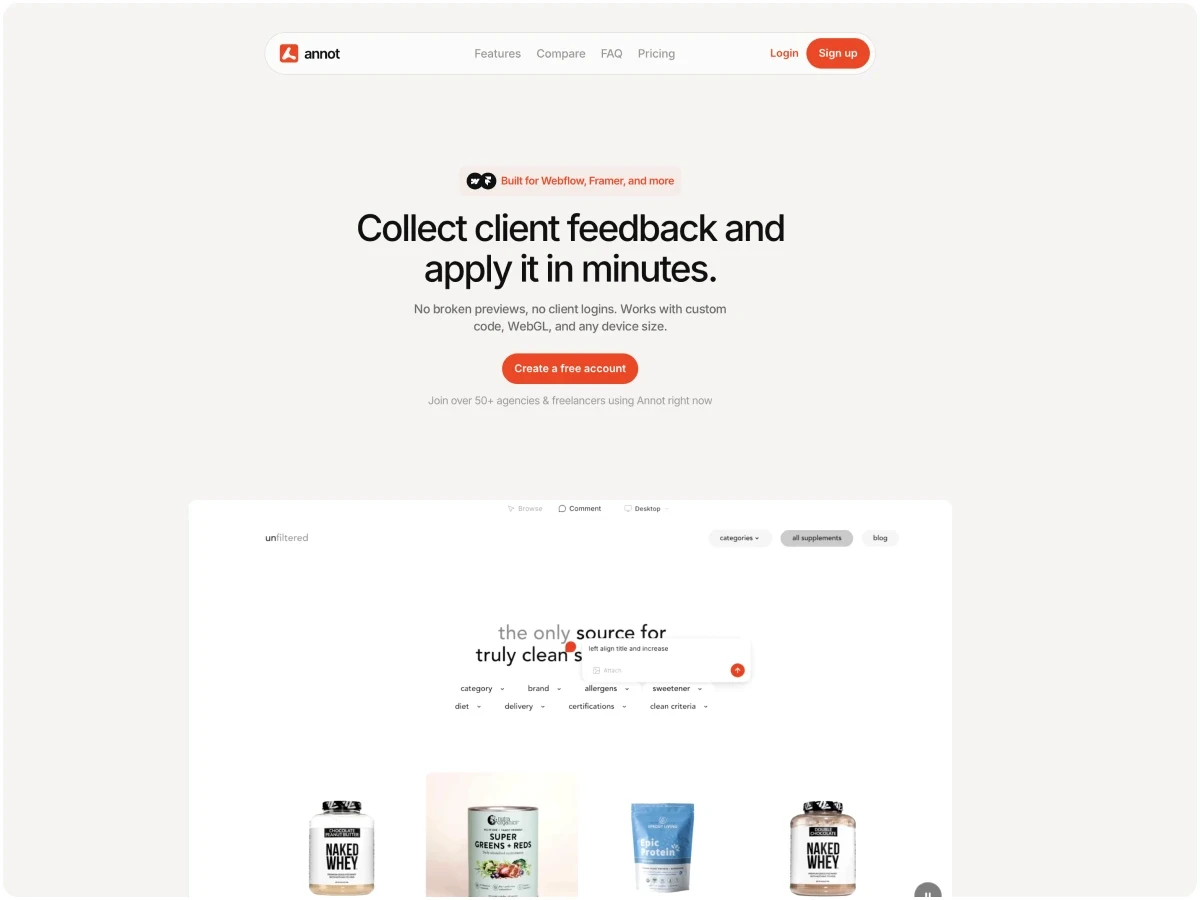
Annot was built by a Webflow developer who got tired of chasing client feedback over Slack. The setup is as simple as it gets: paste your public URL, get a shareable review link, send it to your client. No install, no script tag, no configuration. Clients click anywhere on the live page to drop a pin and leave a comment — no account or extension required. Feedback syncs to Slack and Notion, and an MCP integration lets it plug directly into AI-powered dev workflows. The standout for Webflow teams specifically is WebGL and custom JavaScript support — Annot renders your live site as-is, so animations and scroll effects don't break in the review window the way they do in other tools. It's intentionally scoped to web feedback rather than trying to cover every file type, which keeps the experience clean on both sides. The free plan covers one project with unlimited guests, which is enough to run a real client review. Paid plans start at $9/month for freelancers and $29/month for teams needing multiple projects. One limitation to know upfront: like all proxy tools, it doesn't support password-protected URLs.
Markup.io - Broad file support
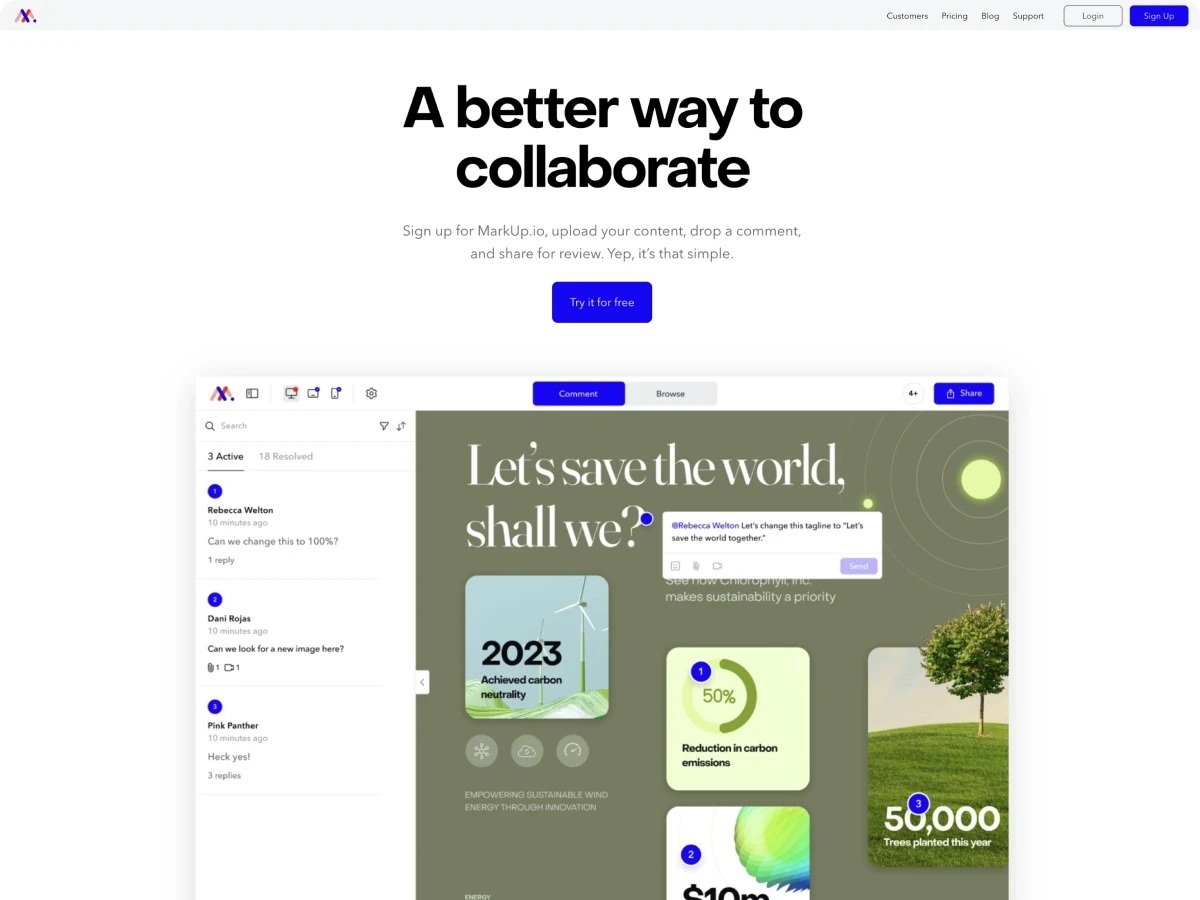
Markup.io started as a lightweight URL-based feedback tool and has since grown into a broader collaboration platform supporting over 30 file types — websites, PDFs, images, and video. The core workflow is the same: paste a URL, share a link, clients comment without creating an account. It covers the basics well and has a solid set of integrations including Jira, Asana, and ClickUp. The main friction point in 2026 is pricing — Markup went through a significant price increase in early 2025, removing their free plan entirely and moving to a single Pro tier at $79/month. That's a hard sell for a freelancer or small agency that mostly needs website feedback. The 30-day trial requires a credit card. If your team needs to review multiple asset types (websites alongside PDFs, videos, and design files) in one platform and the price is justified by that breadth, Markup is a capable option. For teams that primarily need live website feedback, it's harder to justify against leaner alternatives. Like all proxy tools, it doesn't support password-protected URLs.
Pastel - Lightweight option
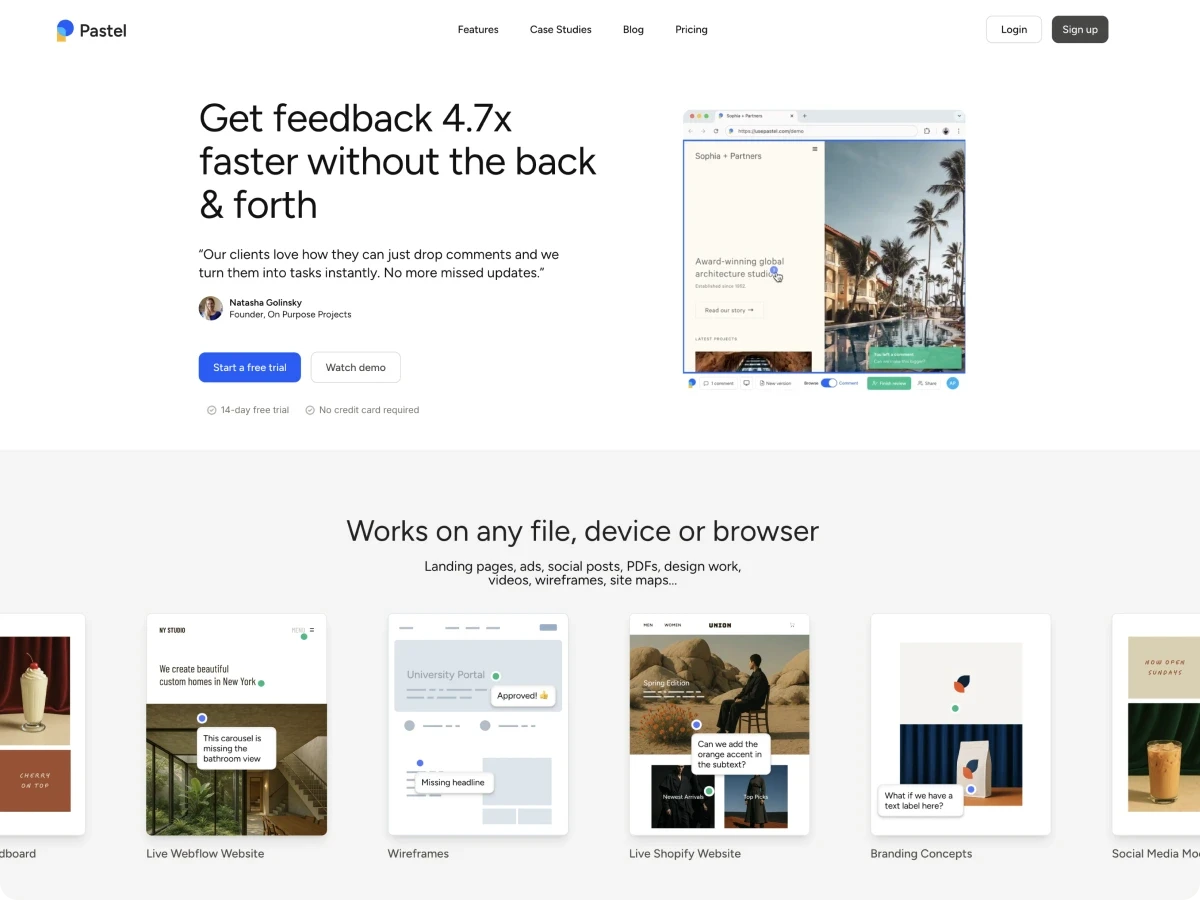
Pastel pioneered the "paste a URL, share a canvas" approach to website feedback and still does it cleanly. The experience is minimal: create a canvas from a URL, share the link, clients leave sticky-note style comments anywhere on the page — no login, no install. It has a genuine free plan (one active canvas at a time), which makes it one of the few options a solo freelancer can actually try without committing. The limitations are real though: the free plan's 72-hour commenting window is frustratingly short for real client review cycles, the Solo paid plan ($29/month) caps you at 3 active canvases, and integrations are basic — primarily Trello and Zapier. Pastel also doesn't capture browser or viewport metadata with comments, which means follow-up questions when a client reports something you can't reproduce. Like all proxy tools, it doesn't work on password-protected URLs. For quick reviews on public-facing pages with non-technical clients, Pastel is still a clean, low-friction option. As a project scales, most agencies hit its limits.
Marker.io - Developer-focused
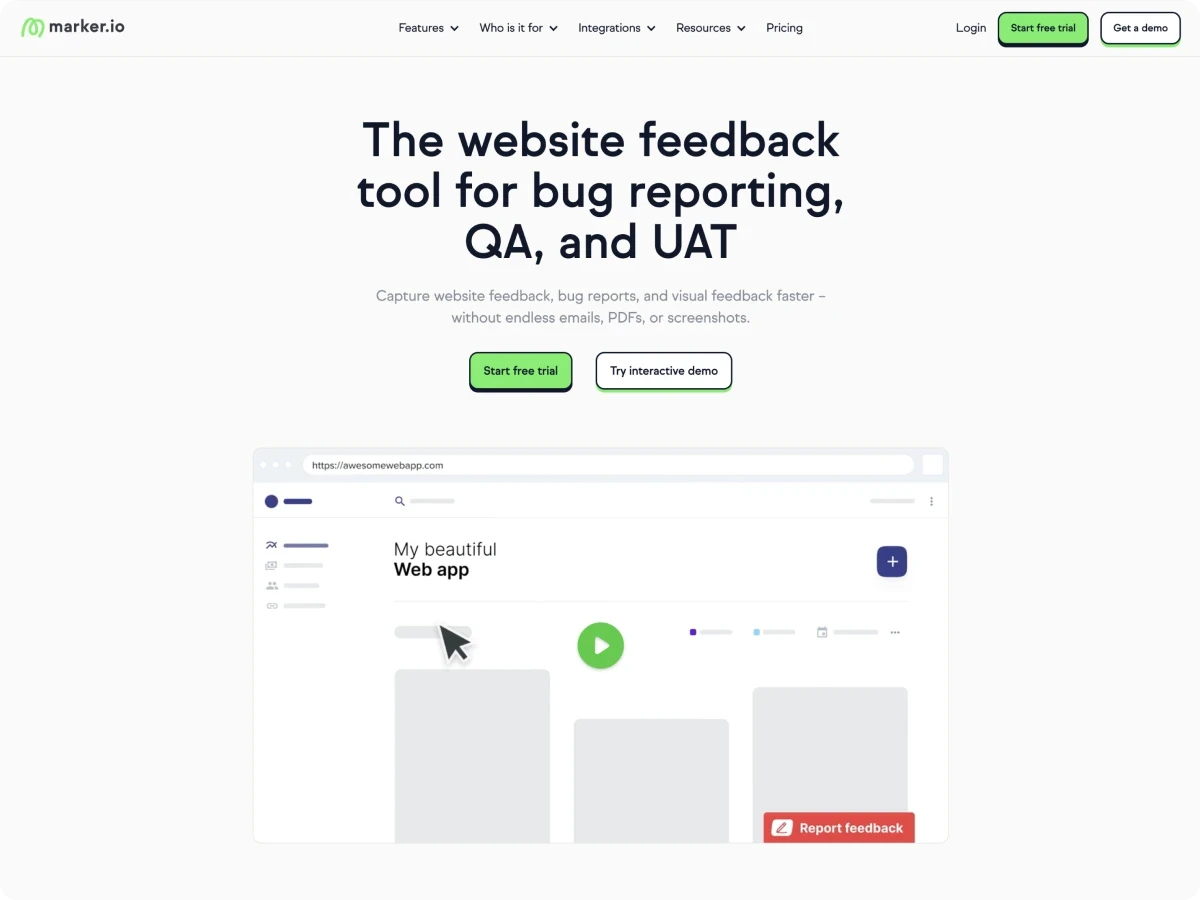
Marker.io is built differently from the other tools on this list. Rather than a proxy, it uses a browser extension or embeddable script — which means it's the only tool here that works on password-protected staging environments. That's a genuine differentiator if your workflow depends on protected URLs. It also captures detailed technical metadata automatically: browser, OS, screen resolution, console logs. For development-heavy Webflow projects where you need QA-grade feedback, that context is valuable. The tradeoffs are significant for typical agency use. Clients need to create an account before they can leave a comment — a friction point that will reduce participation from non-technical reviewers. Pricing starts at $59/month for the Starter plan, which caps at 5 active projects and doesn't include issue-sync with integrations; most agencies would need the Team plan at $199/month. For a Webflow agency doing standard client builds, that's a lot of overhead for a feedback tool. For a dev-heavy shop that genuinely needs password-protected staging support and deep Jira integration, it's the most capable option on this list.



Which tool is right for your team?
The most important decision on this list isn't features — it's whether your clients will actually use the tool. A tool with 20 features that your client finds confusing is worse than a simpler tool they'll open every time you share a link.
For most Webflow agencies and freelancers, the job is: share a link with a non-technical client, have them leave comments directly on the live page, and have those comments land somewhere useful. Annot, Markup.io, and Pastel all do this without requiring a client login. Annot's edge for Webflow specifically is that it renders custom code and WebGL correctly — your animations don't break in the review window. The free tier and $9/month starting price also make it genuinely accessible for freelancers. If you're running multiple concurrent client projects, the Pro plan at $29/month covers three active projects with all integrations.
If budget is the primary concern and your projects are on public URLs, Pastel's free plan gets you started. The 72-hour commenting window is the main frustration to plan around — for longer review cycles, you'll hit it.
Markup.io makes more sense when website feedback is only part of what you need to review. If your team is also proofing PDFs, videos, and design files and wants one platform for all of it, the $79/month is easier to justify. For teams that just need website feedback, the price-to-value ratio is hard to defend against the alternatives.
Marker.io is the right answer in one specific scenario: your staging environment is password-protected, and you need QA-grade technical metadata with every comment. If that's your situation, it's the only tool here that handles it. Be prepared for the client account requirement to generate some friction, and budget accordingly — meaningful agency use starts at the $199/month Team plan.
Frequently asked questions
What is the best website feedback tool for Webflow teams?
For most Webflow agencies, Annot is the strongest fit — it's proxy-based with no client login required, supports WebGL and custom code, has a free tier, and integrates with Slack, Notion, and MCP. If your staging is password-protected, Marker.io is the only tool on this list that handles it, though it requires clients to create an account.
Do website feedback tools work on password-protected Webflow sites?
Most don't. Annot, Markup.io, and Pastel are all proxy-based tools that load your site through their own server — this means they work on public URLs but not on password-protected staging environments. Marker.io uses a browser extension, which gets around this limitation, but it requires clients to have an account before they can leave feedback.
Do clients need to create an account to leave feedback?
Not with Annot, Markup.io, or Pastel — all three allow clients to leave feedback via a shareable link with no sign-up required. Marker.io is the exception: clients need to create an account before commenting, which adds friction in agency workflows with non-technical reviewers.
Is there a free website feedback tool for Webflow?
Yes. Annot's free plan includes one active project with unlimited guests — enough to run a real client review. Pastel also has a free plan with one active canvas, though comments expire after 72 hours. Markup.io no longer has a free plan; it starts at $79/month with a 30-day trial that requires a credit card.
Which tools support WebGL and custom JavaScript on Webflow sites?
Annot explicitly supports WebGL and custom JavaScript — it's called out as a differentiator on their site and is one of the reasons it was built specifically for Webflow and Framer teams. Other proxy tools may render simpler Webflow sites correctly, but custom code and WebGL animations are more likely to break or not load in the review window.